Tuesday, 10 September 2013

How OpenID differs from OAuth? by Mrinal Srivastava

I observed that we people easily get confused between OpenID and OAuth. Many of us think that these are similar protocols used for Single Sign On or as open standard for authentication. But it is not. Here we will try to differentiate between the two at high level to easily understand their working differences.


Definition/Origin:
Now-a-days, on an average, every user has minimum 12-15 online accounts and for those he/she needs to remember those many credentials. Before that one needs to go through the sign-up process for all those accounts, and sign-up process more or less has the same options or required values in their sign-up form like first name, last name, school, college, age etc.  OpenID made a revolutionary change in it. OpenID allows you to sign-up once and create yourfederated identity which is represented by your OpenID URI, with OpenID provider and use the same credentials across the sites (which support OpenID). It drastically removes the need of sign-up at every online application and remembers their credential. Your one OpenID credential works for all your applications. This makes OpenID a popular mechanism for Single Sign On also, as it gives you one credential for multiple sites.

On the other hand, OAuth was originated when Twitter team was working on to implement OpenID support. In that they had one requirement in which they needed to provide access to dashboard widgets also, without re-authenticating the user. Then they realized that there is no open standard available for API access delegation. Then they have initiated an open community and introduced OAuth.

Conclusively, we can say that both the protocols work on federation but, OpenID is open standard for authentication, whereas OAuth is open standard for authorization.

Entities involved:
In OpenID, two main entities are involved OpenID Provider: which gives you your federated identity e.g. MyOpenIDand OpenID Consumer: on which you will use your federated identity to sign-in e.g. WikiSpaces. OpenID provides you third party authentication.

Whereas in OAuth, three main parties are involved, Client Application: which needs access to some resources on behalf of user, Authorization Server: which will authorize the client application by taking user consent to access resources from other application/server on users’ behalf and Resource Server/Service Provider: that will provide the resource/s to client. Google OAuth playground gives a very clear picture about its working and is easy to understand.

In action scenarios:
OpenID:
  1. User is trying to access Wikispaces.com. User clicks on “Sign In with OpenID”.
  2. User needs to provide his OpenID on Wikispaces.
  3. Wikispaces will discover the OpenID Provider on the basis of OpenID URI and redirect the user to OpenID Provider.
  4. User will authenticate himself at OpenID provider.
  5. On successful authentication, OpenID Provider will redirect to Wikispaces with authenticated assertion.
  6. Wikispaces on receiving the assertion will create the user session.
 OAuth:
  1. User is logged in to Facebook (Client). He wants to share his images from Flickr on Facebook.
  2. User clicks on “Share images from Flickr”, one of the app on Facebook, it will redirect the user to Flickr.com’s Authorization Server.
  3. Authorization Server will verify the client and will pop up an Authentication Page of Flickr.com.
  4. User will provide Flickr.com credentials and on successful authentication, user will be asked to make a choice with a similar massage like “Facebook is trying to access your images on your behalf” whether you want to “allow” or “deny”.
  5. If user clicks on allow then Authorization Server will send a authorized assertion to Facebook and using that Facebook will call Flickr’s Share Image API (Resource Server) to get the images.
  6. And those images will be shared on Facebook.
With above examples we can clearly see that OpenID is sending an authentication assertion (My authenticated identity is provided by my OpenID Provider) whereas OAuth is sending an authorization assertion (I am granting(authorizing) one of my applications to access data of another application without exposing or sharing my credentials of one application to another).

Some more differences:
  • In OpenID Association/Federation is established at run time using its OpenID Provider discovery mechanism whereas in OAuth federation is established first as client registration process and then we can use OAuth between federated entities.
  • In OpenID, a complete user session is created whereas in OAuth we get the access of APIs. It depends on the Service Provider or Resource Provider, what access it wants to give through OAuth. They may give you full access also which can be used to create the complete user session.
  • OpenID in its assertion share the authenticated user identity whereas in OAuth, it does not have user identity, it shares an access token in its assertion. So, if you want to get the user identity you need to call some other API using that access token.
  • OAuth allow you to call or use n number of authorized APIs with same access token (authorized assertion) by making n calls on APIs whereas OpenID just helps you to create user session on OpenID Consumer.
  • OpenID messages are exchanged using XRDS (eXtensible Resource Descriptor Sequence) and in OAuth, it is usually JSON.
  • Now OpenID extensions also allow you to access user information from OpenID Provider by calling its APIs. And similarly OAuth extensions also support authentication. But, OpenID is meant for federated authentication and OAuth is meant for delegated authorization.
     
 Many applications now using combination of OpenID and OAuth, for supporting authentication and authorization, that gives you feel of Single Sign On as well as other APIs access (delegated authorization).

Sunday, 7 July 2013

Extended ACLs with Samba 3 in a 2K3 environment

There are a few documents around dealing with extended ACL support in Linux and Samba, but little documentation about its current implementation. The solution I came up with allows for domain admins to have the same level of control on files and directories as the root user and set permissions as one would on a 2003 server with NTFS permissions.
First, I am going to assume that you have Samba authenticating off a Windows 2000/2003 domain using Winbind. If you haven’t set this up, there are numerous documents around that deal with this. I will write another post at a later date on how to do this when I get the time. Also, I will assume that you are using the latest Samba RPM as it should contain support for extended ACLs. The third assumption is that you are using ext3 and that ACL support is enabled in the kernel. CentOS 5 has all of this enabled, so I will be using this as a base.
First, lets enable ACL support on our file system that will host out Samba shares. Open up /etc/fstab and change the line below
/dev/sda1 / ext3 defaults 1 1
to:
/dev/sda1 / ext3 rw,acl 1 1
Now we need to remount the root file system by issuing the following command
mount -v -o remount /
This may take a few minutes. It took about 3-4 for myself. Once this is complete, we will edit our smb.conf file to include the following [global] configuration options
[global]
....
map acl inherit = yes
nt acl support = yes
....
This allow extended ACLs to be applied to the file system. Now we need to allow domain admins permission to change ACLs on the files contained within the shares. Because Linux/UNIX only allows the owner or root to change the permissions of a file, we use the “admin users” option on the share to overwrite this. Edit the smb.conf file to include the following on the selected share.
[sharename]
path = /home/share
....
admin users = @"DOMAIN\Domain Admins"
Restart samba and now try accessing the share from a Windows machine. Check the security tab and add a user in just for kicks. Apply and close the properties window. Now open it again to make sure that the security was retained. If everything was setup correctly, the user you added permission to should still be there. It should look something like below.
extended acls 1
We can also check our Samba server file system permissions using the getfacl tool. This is what it look like if we execute it on the share that we set the permissions on before.
extended acls 2
Here we can see that there are both the normal UNIX permissions (displayed up the top of the window, on each line starting with #) and the extended permissions.
ConclusionExtended ACLs aleviate a lot of permissions headaches when working with Samba in a Windows domain environment. It saves having to continuously chown files that get re-owned by root when you do ceartain functions on them. Also, some files are required to be owned by root (such as VMware virtual machine configuration files), and adding extended ACLs means that we can still copy and manage these VM files without having to chown them to move the files and then chown them back one they are copied accross.

Thursday, 25 April 2013

Meeting minutes 26/04/2013 with Clark

Find out if Facebook allow access to friends friends list
Study a bit on graph theory
Read again the compromised account detection
Try if we can implement account verification & fake account detection in Cecil's social sign in

Monday, 8 April 2013

Meeting notes with Prof. Thomborson

Write up two pieces of works:
Email to Northwestern U for the facebook dataset
Design an experiment that could examine the Trulioo model utilizing the dataset

Research on the Facebook Message Charging schema, try to find out how they decide messages to which account should be charged high and vice-versa.

Tuesday, 29 January 2013

How to test an Ident server by using telnet


How to test an Ident server by using telnet

What you need

  • The host name of an Ident server (for use in the telnet command)
  • The remote port number on the server
  • The local port number to query for

What to do

The initial telnet: > symbolises your shell prompt.
telnet: > telnet server.example.com auth
client: 22, 3216
server: 22 , 3216 : USERID : UNIX :root

Monday, 21 January 2013

How to Use Fdisk to Manage Partitions on Linux


How to Use Fdisk to Manage Partitions on Linux

The fdisk command is a text-based utility for viewing and managing hard disk partitions on Linux. It’s one of the most powerful tools you can use to manage partitions, but it’s confusing to new users.
This tutorial will go through the basics of using fdisk to manage a partition table. After using fdisk, you’ll have to use a mkfs command to format new partitions with a file system.

Sudo vs. Su

On Ubuntu, Linux Mint or other Ubuntu-derived distributions, the fdisk and mkfs commands must be prefixed with sudo. On distributions that don’t use sudo, use the su -command first to get a root shell, then type every command without sudo.

List Partitions

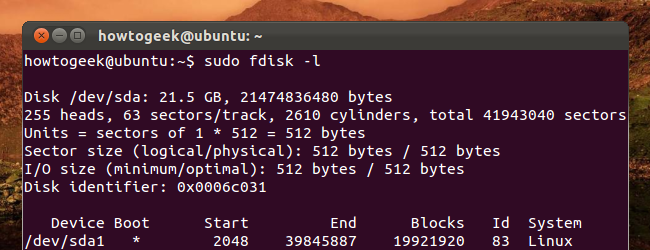
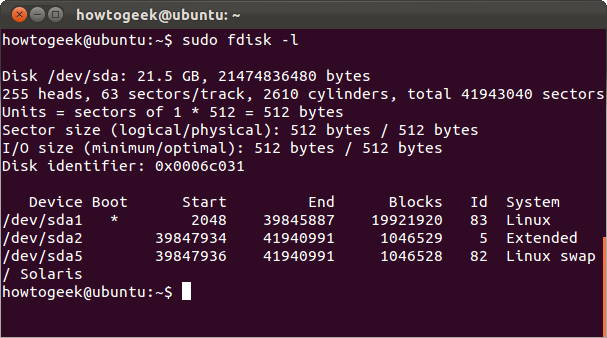
The sudo fdisk -l commands lists the partitions on your system.
You can add a disk’s device name to list only partitions on it. For example, use the following command to only list partitions on the first disk device:
sudo fdisk -l /dev/sda

Entering Command Mode

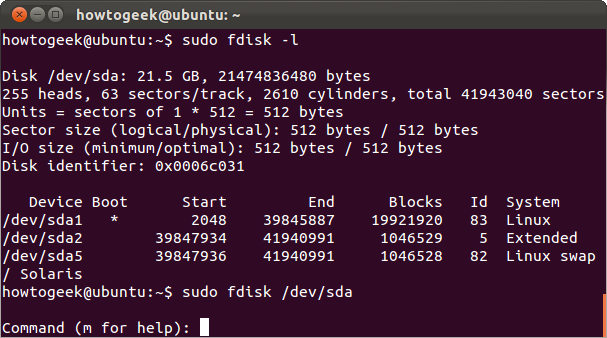
To work on a disk’s partitions, you have to enter command mode. You’ll need the device name of a disk from the fdisk -l command. The following command enters command mode for the first disk device:
sudo fdisk /dev/sda
Don’t edit partitions while they’re in use. If you want to edit system partitions, boot from a live CD first.

Using Command Mode

In command mode, you use single-letter commands to specify actions you want to take. Type m and press Enter to see a list of the commands you can use.

Viewing the Partition Table

Use p to print the current partition table to the terminal from within command mode.

Deleting a Partition

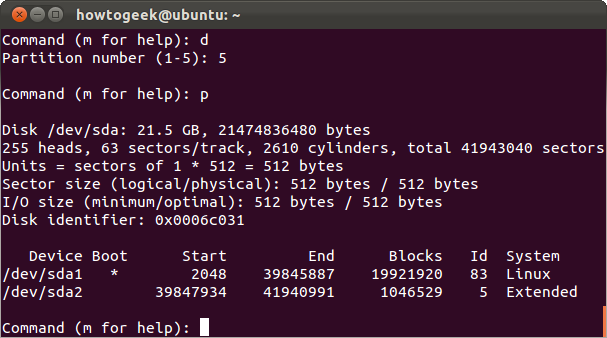
Use the d command to delete a partition. You’ll be asked for the number of the partition you want to delete, which you can get from the p command. For example, if I wanted to delete the partition at /dev/sda5, I’d type 5.
After deleting the partition, you can type p again to view the current partition table. The partition appears deleted, but fdisk doesn’t write these changes to disk until you use the w command.

 Creating a Partition

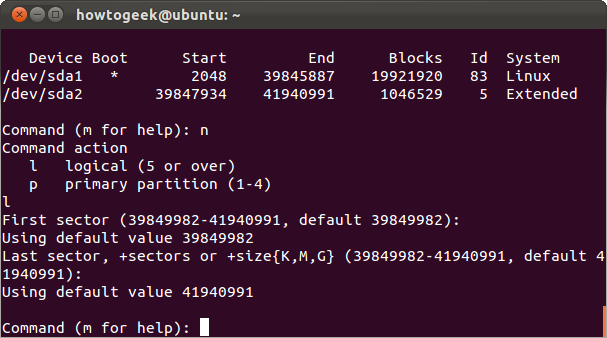
Use the n command to create a new partition. You can create a logical or primary partition (l for logical or p for primary). A disk can only have four primary partitions.
Next, specify the sector of the disk you want the partition to start at. Press Enter to accept the default sector, which is the first free sector on the disk.
Last, specify the last sector of the partition on the disk. If you want to use up all available space after the initial sector, just press Enter. You can also specify a specific size, such as+5G for a five gigabyte partition or +512M for a 512 megabyte partition. If you don’t specify a unit after the + sign, fdisk uses sectors as the unit. For example, +10000results in the end of the partition being 10000 sectors after its beginning.

System ID

The n command I just ran recreated the swap partition I deleted earlier — or did it? If I run the p command again, I’ll see that the new /dev/sda5 partition is a “Linux” partition instead of a “Linux swap” partition.
If I want to change its type, I can use the t command and specify the partition’s number.
I’ll be asked for the hex code of the type. I don’t know it, so I can type L to view a list of hex codes.
It says 82 is the code for Linux swap partitions, so I can type that.
This doesn’t format the partition with the file system you select. You’ll have to do that later with the appropriate mkfs command.

Writing Changes

Use w to write the changes you’ve made to disk.
Use q if you want to quit without saving changes.

Formatting a Partition

You must format new partitions with a file system before you can use them. You can do this with the appropriate mkfs command. For example, this command formats the fifth partition on the first disk with the ext4 file system.
sudo mkfs.ext4 /dev/sda5
Use the mkswap command if you want to format a partition as a swap partition:
sudo mkswap /dev/sda5

Fdisk contains a variety of other commands, including expert commands you can access by running the x command first. Check out fdisk’s man page with the man fdisk command for more detailed information.

The Linux Logical Volume Manager


The Linux Logical Volume Manager

Storage technology plays a critical role in increasing the performance, availability, and manageability of Linux servers. One of the most important new developments in the Linux 2.6 kernel—on which the Red Hat® Enterprise Linux® 4 kernel is based—is the Linux Logical Volume Manager, version 2 (or LVM 2). It combines a more consistent and robust internal design with important new features including volume mirroring and clustering, yet it is upwardly compatible with the original Logical Volume Manager 1 (LVM 1) commands and metadata. This article summarizes the basic principles behind the LVM and provide examples of basic operations to be performed with it.

Introduction

Logical volume management is a widely-used technique for deploying logical rather than physical storage. With LVM, "logical" partitions can span across physical hard drives and can be resized (unlike traditional ext3 "raw" partitions). A physical disk is divided into one or more physical volumes (Pvs), and logical volume groups (VGs) are created by combining PVs as shown in Figure 1. LVM internal organization. Notice the VGs can be an aggregate of PVs from multiple physical disks.
Figure 1. LVM internal organization
Figure 2. Mapping logical extents to physical extents shows how the logical volumes are mapped onto physical volumes. Each PV consists of a number of fixed-size physical extents (PEs); similarly, each LV consists of a number of fixed-size logical extents (LEs). (LEs and PEs are always the same size, the default in LVM 2 is 4 MB.) An LV is created by mapping logical extents to physical extents, so that references to logical block numbers are resolved to physical block numbers. These mappings can be constructed to achieve particular performance, scalability, or availability goals.
Figure 2. Mapping logical extents to physical extents
For example, multiple PVs can be connected together to create a single large logical volume as shown in Figure 3. LVM linear mapping. This approach, known as a linear mapping, allows a file system or database larger than a single volume to be created using two physical disks. An alternative approach is a striped mapping, in which stripes (groups of contiguous physical extents) from alternate PVs are mapped to a single LV, as shown in Figure 4. LVM striped mapping. The striped mapping allows a single logical volume to nearly achieve the combined performance of two PVs and is used quite often to achieve high-bandwidth disk transfers.
Figure 3. LVM linear mapping
Figure 4. LVM striped mapping (4 physical extents per stripe)
Through these different types of logical-to-physical mappings, LVM can achieve four important advantages over raw physical partitions:
  1. Logical volumes can be resized while they are mounted and accessible by the database or file system, removing the downtime associated with adding or deleting storage from a Linux server
  2. Data from one (potentially faulty or damaged) physical device may be relocated to another device that is newer, faster or more resilient, while the original volume remains online and accessible
  3. Logical volumes can be constructed by aggregating physical devices to increase performance (via disk striping) or redundancy (via disk mirroring and I/O multipathing)
  4. Logical volume snapshots can be created to represent the exact state of the volume at a certain point-in-time, allowing accurate backups to proceed simultaneously with regular system operation

Basic LVM commands

Initializing disks or disk partitions

To use LVM, partitions and whole disks must first be converted into physical volumes (PVs) using the pvcreate command. For example, to convert /dev/hda and /dev/hdb into PVs use the following commands:

pvcreate /dev/hda
pvcreate /dev/hdb

If a Linux partition is to be converted make sure that it is given partition type 0x8E usingfdisk, then use pvcreate:

pvcreate /dev/hda1

Creating a volume group

Once you have one or more physical volumes created, you can create a volume group from these PVs using the vgcreate command. The following command:

vgcreate  volume_group_one /dev/hda /dev/hdb

creates a new VG called volume_group_one with two disks, /dev/hda and /dev/hdb, and 4 MB PEs. If both /dev/hda and /dev/hdb are 128 GB in size, then the VGvolume_group_one will have a total of 2**16 physical extents that can be allocated to logical volumes.
Additional PVs can be added to this volume group using the vgextend command. The following commands convert /dev/hdc into a PV and then adds that PV tovolume_group_one:

pvcreate /dev/hdc
vgextend volume_group_one /dev/hdc

This same PV can be removed from volume_group_one by the vgreduce command:

vgreduce volume_group_one /dev/hdc

Note that any logical volumes using physical extents from PV /dev/hdc will be removed as well. This raises the issue of how we create an LV within a volume group in the first place.

Creating a logical volume

We use the lvcreate command to create a new logical volume using the free physical extents in the VG pool. Continuing our example using VG volume_group_one (with two PVs /dev/hda and /dev/hdb and a total capacity of 256 GB), we could allocate nearly all the PEs in the volume group to a single linear LV called logical_volume_one with the following LVM command:

lvcreate -n logical_volume_one   --size 255G volume_group_one 

Instead of specifying the LV size in GB we could also specify it in terms of logical extents. First we use vgdisplay to determine the number of PEs in the volume_group_one:

vgdisplay volume_group_one | grep "Total PE"

which returns

Total PE   65536

Then the following lvcreate command will create a logical volume with 65536 logical extents and fill the volume group completely:

lvcreate -n logical_volume_one  -l 65536 volume_group_one

To create a 1500MB linear LV named logical_volume_one and its block device special file /dev/volume_group_one/logical_volume_one use the following command:

lvcreate -L1500 -n logical_volume_one volume_group_one

The lvcreate command uses linear mappings by default.
Striped mappings can also be created with lvcreate. For example, to create a 255 GB large logical volume with two stripes and stripe size of 4 KB the following command can be used:

lvcreate -i2 -I4 --size 255G -n logical_volume_one_striped volume_group_one

It is possible to allocate a logical volume from a specific physical volume in the VG by specifying the PV or PVs at the end of the lvcreate command. If you want the logical volume to be allocated from a specific physical volume in the volume group, specify the PV or PVs at the end of the lvcreate command line. For example, this command:

lvcreate -i2 -I4 -L128G -n logical_volume_one_striped volume_group_one /dev/hda /dev/hdb 

creates a striped LV named logical_volume_one that is striped across two PVs (/dev/hda and /dev/hdb) with stripe size 4 KB and 128 GB in size.
An LV can be removed from a VG through the lvremove command, but first the LV must be unmounted:

umount /dev/volume_group_one/logical_volume_one
lvremove /dev/volume_group_one/logical_volume_one

Note that LVM volume groups and underlying logical volumes are included in the device special file directory tree in the /dev directory with the following layout:

/dev/<volume_group_name>/<logical_volume_name>

so that if we had two volume groups myvg1 and myvg2 and each with three logical volumes named lv01lv02lv03, six device special files would be created:

/dev/myvg1/lv01
/dev/myvg1/lv02
/dev/myvg1/lv03
/dev/myvg2/lv01
/dev/myvg2/lv02
/dev/myvg2/lv03

Extending a logical volume

An LV can be extended by using the lvextend command. You can specify either an absolute size for the extended LV or how much additional storage you want to add to the LVM. For example:

lvextend -L120G /dev/myvg/homevol

will extend LV /dev/myvg/homevol to 12 GB, while

lvextend -L+10G /dev/myvg/homevol

will extend LV /dev/myvg/homevol by an additional 10 GB. Once a logical volume has been extended, the underlying file system can be expanded to exploit the additional storage now available on the LV. With Red Hat Enterprise Linux 4, it is possible to expand both the ext3fs and GFS file systems online, without bringing the system down. (The ext3 file system can be shrunk or expanded offline using the ext2resize command.) To resize ext3fs, the following command

ext2online /dev/myvg/homevol

will extend the ext3 file system to completely fill the LV, /dev/myvg/homevol, on which it resides.
The file system specified by device (partition, loop device, or logical volume) or mount point must currently be mounted, and it will be enlarged to fill the device, by default. If an optional size parameter is specified, then this size will be used instead.

Differences between LVM1 and LVM2

The new release of LVM, LVM 2, is available only on Red Hat Enterprise Linux 4 and later kernels. It is upwardly compatible with LVM 1 and retains the same command line interface structure. However it uses a new, more scalable and resilient metadata structure that allows for transactional metadata updates (that allow quick recovery after server failures), very large numbers of devices, and clustering. For Enterprise Linux servers deployed in mission-critical environments that require high availability, LVM2 is the right choice for Linux volume management. Table 1. A comparison of LVM 1 and LVM 2summarizes the differences between LVM1 and LVM2 in features, kernel support, and other areas.
FeaturesLVM1LVM2
RHEL AS 2.1 supportNoNo
RHEL 3 supportYesNo
RHEL 4 supportNoYes
Transactional metadata for fast recoveryNoYes
Shared volume mounts with GFSNoYes
Cluster Suite failover supportedYesYes
Striped volume expansionNoYes
Max number PVs, LVs256 PVs, 256 LVs2**32 PVs, 2**32 LVs
Max device size2 Terabytes8 Exabytes (64-bit CPUs)
Volume mirroring supportNoYes, in Fall 2005
Table 1. A comparison of LVM 1 and LVM 2

Summary

The Linux Logical Volume Manager provides increased manageability, uptime, and performance for Red Hat Enterprise Linux servers. You can learn more about LVM by visiting to following websites:

About the authors

From 1990 to May 2000, Matthew O'Keefe taught and performed research in storage systems and parallel simulation software as a professor of electrical and computer engineering at the University of Minnesota. He founded Sistina Software in May of 2000 to develop storage infrastructure software for Linux, including the Global File System (GFS) and the Linux Logical Volume Manager (LVM). Sistina was acquired by Red Hat in December 2003, where Matthew now directs storage software strategy.
Starting in 2000, Heinz Mauelshagen began working on device mapper and LVM at Sistina Software. Sistina was acquired by Red Hat in December 2003. Heinz Mauelshagen is currently continuing his work on clustering and storage as a Red Hat developer in Germany. Before joining Sistina, Heinz was a senior system administrator at T-Systems for a decade.

Spring’s @Transactional does not rollback on checked exceptions


Spring’s @Transactional does not rollback on checked exceptions

18. February 2009
We’re using the Spring Framework in most of our applications (and thus also in the Catalysts Platform) and are really satisfied with it.
One of the big advantages is the the declarative transaction handling using the@Transactional attribute.
import org.springframework.transaction.Transactional;
 
@Transactional
public class MyService implements IMyService {
  public List getResults () {
    // do something
  }
 
  public void foo() {
    throw new java.lang.UnsupportedOperationException();
  }
 
  public void bar() {
    throw new java.lang.Exception();
  }
}
That simple annoation on class managed by a  ApplicationContext causes all method calls onto that service to be bound to a transaction. The transaction is committed after the method call has left the service again and it’s rollbacked for the case an exception is thrown (e.g. after calling the (quite silly) method foo()).
But be careful: Only unchecked exceptions (that is, subclasses of .lang.RuntimeException) are rollbacked by default. For the case, a checked exception is thrown, the transaction will be committed!
The Spring documentation explains that as follows:
While the EJB default behavior is for the EJB container to automatically roll back the transaction on a system exception (usually a runtime exception), EJB CMT does not roll back the transaction automatically on an application exception (that is, a checked exception other than java.rmi.RemoteException). While the Spring default behavior for declarative transaction management follows EJB convention (roll back is automatic only on unchecked exceptions), it is often useful to customize this.
And that customization can be done very easily by just adding the parameter rollBackFor to the @Transactional attribute:
import org.springframework.transaction.Transactional;
 
@Transactional(rollbackFor = Exception.class)
public class MyService implements IMyService {
  public List getResults () {
    // do something
  }
 
  public void foo() {
    throw new java.lang.UnsupportedOperationException();
  }
 
  public void bar() {
    throw new java.lang.Exception();
  }
}
In that case, the transaction will even be be rollbacked on a call to the method bar().