Tuesday, 29 January 2013

How to test an Ident server by using telnet


How to test an Ident server by using telnet

What you need

  • The host name of an Ident server (for use in the telnet command)
  • The remote port number on the server
  • The local port number to query for

What to do

The initial telnet: > symbolises your shell prompt.
telnet: > telnet server.example.com auth
client: 22, 3216
server: 22 , 3216 : USERID : UNIX :root

Monday, 21 January 2013

How to Use Fdisk to Manage Partitions on Linux


How to Use Fdisk to Manage Partitions on Linux

The fdisk command is a text-based utility for viewing and managing hard disk partitions on Linux. It’s one of the most powerful tools you can use to manage partitions, but it’s confusing to new users.
This tutorial will go through the basics of using fdisk to manage a partition table. After using fdisk, you’ll have to use a mkfs command to format new partitions with a file system.

Sudo vs. Su

On Ubuntu, Linux Mint or other Ubuntu-derived distributions, the fdisk and mkfs commands must be prefixed with sudo. On distributions that don’t use sudo, use the su -command first to get a root shell, then type every command without sudo.

List Partitions

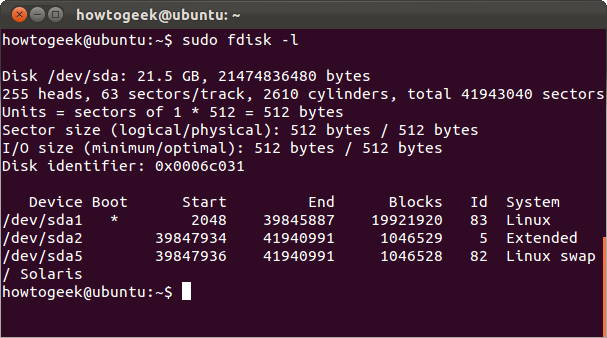
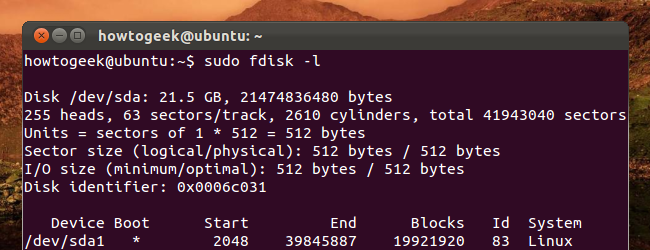
The sudo fdisk -l commands lists the partitions on your system.
You can add a disk’s device name to list only partitions on it. For example, use the following command to only list partitions on the first disk device:
sudo fdisk -l /dev/sda

Entering Command Mode

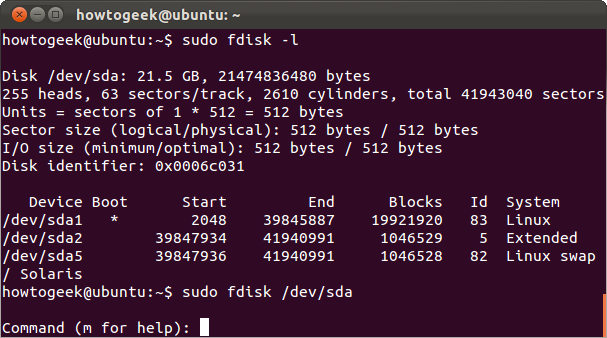
To work on a disk’s partitions, you have to enter command mode. You’ll need the device name of a disk from the fdisk -l command. The following command enters command mode for the first disk device:
sudo fdisk /dev/sda
Don’t edit partitions while they’re in use. If you want to edit system partitions, boot from a live CD first.

Using Command Mode

In command mode, you use single-letter commands to specify actions you want to take. Type m and press Enter to see a list of the commands you can use.

Viewing the Partition Table

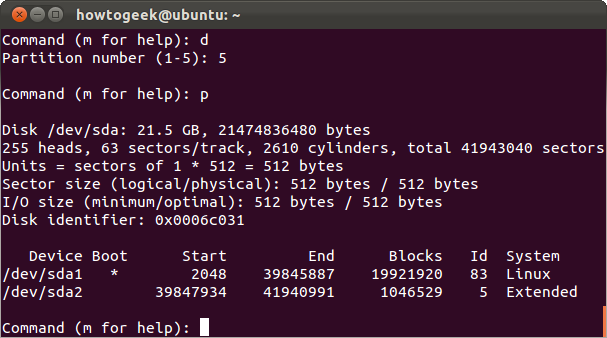
Use p to print the current partition table to the terminal from within command mode.

Deleting a Partition

Use the d command to delete a partition. You’ll be asked for the number of the partition you want to delete, which you can get from the p command. For example, if I wanted to delete the partition at /dev/sda5, I’d type 5.
After deleting the partition, you can type p again to view the current partition table. The partition appears deleted, but fdisk doesn’t write these changes to disk until you use the w command.

 Creating a Partition

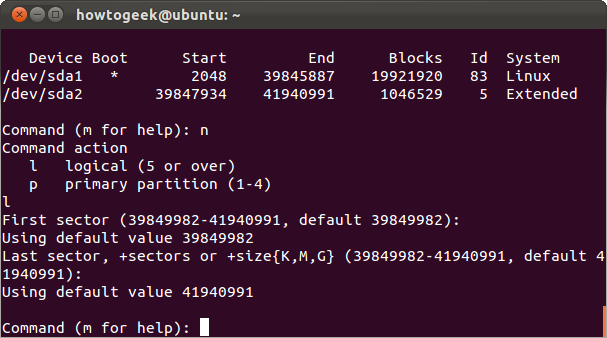
Use the n command to create a new partition. You can create a logical or primary partition (l for logical or p for primary). A disk can only have four primary partitions.
Next, specify the sector of the disk you want the partition to start at. Press Enter to accept the default sector, which is the first free sector on the disk.
Last, specify the last sector of the partition on the disk. If you want to use up all available space after the initial sector, just press Enter. You can also specify a specific size, such as+5G for a five gigabyte partition or +512M for a 512 megabyte partition. If you don’t specify a unit after the + sign, fdisk uses sectors as the unit. For example, +10000results in the end of the partition being 10000 sectors after its beginning.

System ID

The n command I just ran recreated the swap partition I deleted earlier — or did it? If I run the p command again, I’ll see that the new /dev/sda5 partition is a “Linux” partition instead of a “Linux swap” partition.
If I want to change its type, I can use the t command and specify the partition’s number.
I’ll be asked for the hex code of the type. I don’t know it, so I can type L to view a list of hex codes.
It says 82 is the code for Linux swap partitions, so I can type that.
This doesn’t format the partition with the file system you select. You’ll have to do that later with the appropriate mkfs command.

Writing Changes

Use w to write the changes you’ve made to disk.
Use q if you want to quit without saving changes.

Formatting a Partition

You must format new partitions with a file system before you can use them. You can do this with the appropriate mkfs command. For example, this command formats the fifth partition on the first disk with the ext4 file system.
sudo mkfs.ext4 /dev/sda5
Use the mkswap command if you want to format a partition as a swap partition:
sudo mkswap /dev/sda5

Fdisk contains a variety of other commands, including expert commands you can access by running the x command first. Check out fdisk’s man page with the man fdisk command for more detailed information.

The Linux Logical Volume Manager


The Linux Logical Volume Manager

Storage technology plays a critical role in increasing the performance, availability, and manageability of Linux servers. One of the most important new developments in the Linux 2.6 kernel—on which the Red Hat® Enterprise Linux® 4 kernel is based—is the Linux Logical Volume Manager, version 2 (or LVM 2). It combines a more consistent and robust internal design with important new features including volume mirroring and clustering, yet it is upwardly compatible with the original Logical Volume Manager 1 (LVM 1) commands and metadata. This article summarizes the basic principles behind the LVM and provide examples of basic operations to be performed with it.

Introduction

Logical volume management is a widely-used technique for deploying logical rather than physical storage. With LVM, "logical" partitions can span across physical hard drives and can be resized (unlike traditional ext3 "raw" partitions). A physical disk is divided into one or more physical volumes (Pvs), and logical volume groups (VGs) are created by combining PVs as shown in Figure 1. LVM internal organization. Notice the VGs can be an aggregate of PVs from multiple physical disks.
Figure 1. LVM internal organization
Figure 2. Mapping logical extents to physical extents shows how the logical volumes are mapped onto physical volumes. Each PV consists of a number of fixed-size physical extents (PEs); similarly, each LV consists of a number of fixed-size logical extents (LEs). (LEs and PEs are always the same size, the default in LVM 2 is 4 MB.) An LV is created by mapping logical extents to physical extents, so that references to logical block numbers are resolved to physical block numbers. These mappings can be constructed to achieve particular performance, scalability, or availability goals.
Figure 2. Mapping logical extents to physical extents
For example, multiple PVs can be connected together to create a single large logical volume as shown in Figure 3. LVM linear mapping. This approach, known as a linear mapping, allows a file system or database larger than a single volume to be created using two physical disks. An alternative approach is a striped mapping, in which stripes (groups of contiguous physical extents) from alternate PVs are mapped to a single LV, as shown in Figure 4. LVM striped mapping. The striped mapping allows a single logical volume to nearly achieve the combined performance of two PVs and is used quite often to achieve high-bandwidth disk transfers.
Figure 3. LVM linear mapping
Figure 4. LVM striped mapping (4 physical extents per stripe)
Through these different types of logical-to-physical mappings, LVM can achieve four important advantages over raw physical partitions:
  1. Logical volumes can be resized while they are mounted and accessible by the database or file system, removing the downtime associated with adding or deleting storage from a Linux server
  2. Data from one (potentially faulty or damaged) physical device may be relocated to another device that is newer, faster or more resilient, while the original volume remains online and accessible
  3. Logical volumes can be constructed by aggregating physical devices to increase performance (via disk striping) or redundancy (via disk mirroring and I/O multipathing)
  4. Logical volume snapshots can be created to represent the exact state of the volume at a certain point-in-time, allowing accurate backups to proceed simultaneously with regular system operation

Basic LVM commands

Initializing disks or disk partitions

To use LVM, partitions and whole disks must first be converted into physical volumes (PVs) using the pvcreate command. For example, to convert /dev/hda and /dev/hdb into PVs use the following commands:

pvcreate /dev/hda
pvcreate /dev/hdb

If a Linux partition is to be converted make sure that it is given partition type 0x8E usingfdisk, then use pvcreate:

pvcreate /dev/hda1

Creating a volume group

Once you have one or more physical volumes created, you can create a volume group from these PVs using the vgcreate command. The following command:

vgcreate  volume_group_one /dev/hda /dev/hdb

creates a new VG called volume_group_one with two disks, /dev/hda and /dev/hdb, and 4 MB PEs. If both /dev/hda and /dev/hdb are 128 GB in size, then the VGvolume_group_one will have a total of 2**16 physical extents that can be allocated to logical volumes.
Additional PVs can be added to this volume group using the vgextend command. The following commands convert /dev/hdc into a PV and then adds that PV tovolume_group_one:

pvcreate /dev/hdc
vgextend volume_group_one /dev/hdc

This same PV can be removed from volume_group_one by the vgreduce command:

vgreduce volume_group_one /dev/hdc

Note that any logical volumes using physical extents from PV /dev/hdc will be removed as well. This raises the issue of how we create an LV within a volume group in the first place.

Creating a logical volume

We use the lvcreate command to create a new logical volume using the free physical extents in the VG pool. Continuing our example using VG volume_group_one (with two PVs /dev/hda and /dev/hdb and a total capacity of 256 GB), we could allocate nearly all the PEs in the volume group to a single linear LV called logical_volume_one with the following LVM command:

lvcreate -n logical_volume_one   --size 255G volume_group_one 

Instead of specifying the LV size in GB we could also specify it in terms of logical extents. First we use vgdisplay to determine the number of PEs in the volume_group_one:

vgdisplay volume_group_one | grep "Total PE"

which returns

Total PE   65536

Then the following lvcreate command will create a logical volume with 65536 logical extents and fill the volume group completely:

lvcreate -n logical_volume_one  -l 65536 volume_group_one

To create a 1500MB linear LV named logical_volume_one and its block device special file /dev/volume_group_one/logical_volume_one use the following command:

lvcreate -L1500 -n logical_volume_one volume_group_one

The lvcreate command uses linear mappings by default.
Striped mappings can also be created with lvcreate. For example, to create a 255 GB large logical volume with two stripes and stripe size of 4 KB the following command can be used:

lvcreate -i2 -I4 --size 255G -n logical_volume_one_striped volume_group_one

It is possible to allocate a logical volume from a specific physical volume in the VG by specifying the PV or PVs at the end of the lvcreate command. If you want the logical volume to be allocated from a specific physical volume in the volume group, specify the PV or PVs at the end of the lvcreate command line. For example, this command:

lvcreate -i2 -I4 -L128G -n logical_volume_one_striped volume_group_one /dev/hda /dev/hdb 

creates a striped LV named logical_volume_one that is striped across two PVs (/dev/hda and /dev/hdb) with stripe size 4 KB and 128 GB in size.
An LV can be removed from a VG through the lvremove command, but first the LV must be unmounted:

umount /dev/volume_group_one/logical_volume_one
lvremove /dev/volume_group_one/logical_volume_one

Note that LVM volume groups and underlying logical volumes are included in the device special file directory tree in the /dev directory with the following layout:

/dev/<volume_group_name>/<logical_volume_name>

so that if we had two volume groups myvg1 and myvg2 and each with three logical volumes named lv01lv02lv03, six device special files would be created:

/dev/myvg1/lv01
/dev/myvg1/lv02
/dev/myvg1/lv03
/dev/myvg2/lv01
/dev/myvg2/lv02
/dev/myvg2/lv03

Extending a logical volume

An LV can be extended by using the lvextend command. You can specify either an absolute size for the extended LV or how much additional storage you want to add to the LVM. For example:

lvextend -L120G /dev/myvg/homevol

will extend LV /dev/myvg/homevol to 12 GB, while

lvextend -L+10G /dev/myvg/homevol

will extend LV /dev/myvg/homevol by an additional 10 GB. Once a logical volume has been extended, the underlying file system can be expanded to exploit the additional storage now available on the LV. With Red Hat Enterprise Linux 4, it is possible to expand both the ext3fs and GFS file systems online, without bringing the system down. (The ext3 file system can be shrunk or expanded offline using the ext2resize command.) To resize ext3fs, the following command

ext2online /dev/myvg/homevol

will extend the ext3 file system to completely fill the LV, /dev/myvg/homevol, on which it resides.
The file system specified by device (partition, loop device, or logical volume) or mount point must currently be mounted, and it will be enlarged to fill the device, by default. If an optional size parameter is specified, then this size will be used instead.

Differences between LVM1 and LVM2

The new release of LVM, LVM 2, is available only on Red Hat Enterprise Linux 4 and later kernels. It is upwardly compatible with LVM 1 and retains the same command line interface structure. However it uses a new, more scalable and resilient metadata structure that allows for transactional metadata updates (that allow quick recovery after server failures), very large numbers of devices, and clustering. For Enterprise Linux servers deployed in mission-critical environments that require high availability, LVM2 is the right choice for Linux volume management. Table 1. A comparison of LVM 1 and LVM 2summarizes the differences between LVM1 and LVM2 in features, kernel support, and other areas.
FeaturesLVM1LVM2
RHEL AS 2.1 supportNoNo
RHEL 3 supportYesNo
RHEL 4 supportNoYes
Transactional metadata for fast recoveryNoYes
Shared volume mounts with GFSNoYes
Cluster Suite failover supportedYesYes
Striped volume expansionNoYes
Max number PVs, LVs256 PVs, 256 LVs2**32 PVs, 2**32 LVs
Max device size2 Terabytes8 Exabytes (64-bit CPUs)
Volume mirroring supportNoYes, in Fall 2005
Table 1. A comparison of LVM 1 and LVM 2

Summary

The Linux Logical Volume Manager provides increased manageability, uptime, and performance for Red Hat Enterprise Linux servers. You can learn more about LVM by visiting to following websites:

About the authors

From 1990 to May 2000, Matthew O'Keefe taught and performed research in storage systems and parallel simulation software as a professor of electrical and computer engineering at the University of Minnesota. He founded Sistina Software in May of 2000 to develop storage infrastructure software for Linux, including the Global File System (GFS) and the Linux Logical Volume Manager (LVM). Sistina was acquired by Red Hat in December 2003, where Matthew now directs storage software strategy.
Starting in 2000, Heinz Mauelshagen began working on device mapper and LVM at Sistina Software. Sistina was acquired by Red Hat in December 2003. Heinz Mauelshagen is currently continuing his work on clustering and storage as a Red Hat developer in Germany. Before joining Sistina, Heinz was a senior system administrator at T-Systems for a decade.

Spring’s @Transactional does not rollback on checked exceptions


Spring’s @Transactional does not rollback on checked exceptions

18. February 2009
We’re using the Spring Framework in most of our applications (and thus also in the Catalysts Platform) and are really satisfied with it.
One of the big advantages is the the declarative transaction handling using the@Transactional attribute.
import org.springframework.transaction.Transactional;
 
@Transactional
public class MyService implements IMyService {
  public List getResults () {
    // do something
  }
 
  public void foo() {
    throw new java.lang.UnsupportedOperationException();
  }
 
  public void bar() {
    throw new java.lang.Exception();
  }
}
That simple annoation on class managed by a  ApplicationContext causes all method calls onto that service to be bound to a transaction. The transaction is committed after the method call has left the service again and it’s rollbacked for the case an exception is thrown (e.g. after calling the (quite silly) method foo()).
But be careful: Only unchecked exceptions (that is, subclasses of .lang.RuntimeException) are rollbacked by default. For the case, a checked exception is thrown, the transaction will be committed!
The Spring documentation explains that as follows:
While the EJB default behavior is for the EJB container to automatically roll back the transaction on a system exception (usually a runtime exception), EJB CMT does not roll back the transaction automatically on an application exception (that is, a checked exception other than java.rmi.RemoteException). While the Spring default behavior for declarative transaction management follows EJB convention (roll back is automatic only on unchecked exceptions), it is often useful to customize this.
And that customization can be done very easily by just adding the parameter rollBackFor to the @Transactional attribute:
import org.springframework.transaction.Transactional;
 
@Transactional(rollbackFor = Exception.class)
public class MyService implements IMyService {
  public List getResults () {
    // do something
  }
 
  public void foo() {
    throw new java.lang.UnsupportedOperationException();
  }
 
  public void bar() {
    throw new java.lang.Exception();
  }
}
In that case, the transaction will even be be rollbacked on a call to the method bar().

Sunday, 20 January 2013

List Files and Directories by Size on Linux From HowToGeek


List Files and Directories by Size on Linux

From HowToGeek

This page will show us how to create a list of files and folders ordered by size using standard Linux commands.

Command

To get a list with the size of each item in a folder, you'll want to use the du command like this:
du -sm *
The -m argument will return the listing in megabytes (note that you can use -h for human readable, but it won't sort correctly)
Now we will want to run this through the sort command, sorting in reverse order -r and numeric -n:
du -sm * | sort -nr
The only problem here is that we'll get way too much output if there are a lot of files and folders, so we can either pipe it through the more command:
du -sm * | sort -nr | more
Or we can just return the top 15 largest items:
du -sm * | sort -nr | head -15
This will return a listing something like this:
2907    Files1
993     Files2
38      Somefile.txt

-------------------------------------------------------------------------------------------------------------------------------

du -hs * | sort -h
du -h * | sort -h

Wednesday, 16 January 2013

7 Powerful Linux commands to debug Java performance issue


7 Powerful Linux commands to debug Java performance issue


Linux operating system is very powerful and if we know the correct tools to debug its much easier then any other operating system. Sometimes it gets very difficult to investigate issues on production system where we can use a very little debugging tools. This tutorial contains few good operating system commands to be used while debugging Java processes on Linux/Unix environment.


  1. lsof Command - Check for open file descriptors
  2. This command lists the open file descriptors by a process on unix operating system. Here is short description from man output of lsof. An open file may be a regular file, a directory, a block special file, a character special file, an executing text reference, a library, a stream or a network file (Internet socket, NFS file or UNIX domain socket.) A specific file or all the files in a file system may be selected by path. This command is really useful when you are facing third-party library related issues and you can not make out which library is being used by your program. The output of the command shows the complete path of library files it has opened. In fact its interesting to see that lots of libraries are not loaded until required by your application. Below is a sample output of lsof command for a java process.
    1. lsof -p <pid>  
    2.   
    3. java 10258 i5 mem REG 253,3 22068 1246769 /usr/local/apache-tomcat-5.5.20/server/lib/servlets-webdav.jar  
    4. java 10258 i5 mem REG 253,3 19146 1246778 /usr/local/apache-tomcat-5.5.20/server/lib/tomcat-coyote.jar  
    5. java 10258 i5 mem REG 253,3 64804 1246780 /usr/local/apache-tomcat-5.5.20/server/lib/catalina-storeconfig.jar  
    6. java 10258 i5 mem REG 253,3 167142 1246770 /usr/local/apache-tomcat-5.5.20/server/lib/tomcat-ajp.jar  
    7. java 10258 i5 mem REG 253,3 88222 1246771 /usr/local/apache-tomcat-5.5.20/server/lib/tomcat-http.jar  
    8. java 10258 i5 mem REG 253,3 23326 1246774 /usr/local/apache-tomcat-5.5.20/server/lib/catalina-ant-jmx.jar  
    9. java 10258 i5 mem REG 253,3 18301 1246779 /usr/local/apache-tomcat-5.5.20/server/lib/servlets-default.jar  
    10. java 10258 i5 mem REG 253,3 26354 1246776 /usr/local/apache-tomcat-5.5.20/server/lib/catalina-ant.jar  
    11. java 10258 i5 mem REG 253,3 115344 1246768 /usr/local/apache-tomcat-5.5.20/server/lib/catalina-optional.jar  
    12. java 10258 i5 mem REG 253,3 25161 1246781 /usr/local/apache-tomcat-5.5.20/server/lib/tomcat-apr.jar  
    13. </pid>  

    How this can be used?

    If you look at the output above, this command shows the exact details of open files with absolute path. If there is an incorrect jar file in CLASSPATH being used by your java program then you can easily figure out the issue by looking at this output.

  3. pstack - Check for process stack trace
  4. This command gives the light weight process stack for a process. This is a really helpful command if you are debugging some issues like process run away or deadlock on production. Here is a sample output of a java process pstack.
    1. $ pstack <pid>  
    2.   
    3. Thread 209 (Thread 818031520 (LWP 26203:((  
    4. #0 0xb7fe87a2 in _dl_sysinfo_int80 () from /lib/ld-linux.so.2  
    5. #1 0xb7fd3f7c in pthread_cond_timedwait@@GLIBC_2.3.2 ()  
    6. #2 0xb7fd43f5 in pthread_cond_timedwait@GLIBC_2.0 ()  
    7. #3 0xb78ee95c in os::Linux::safe_cond_timedwait ()  
    8. #4 0xb78d5e41 in Monitor::wait ()  
    9. #5 0xb79d1e8b in VMThread::loop ()  
    10. #6 0xb79d1af0 in VMThread::run ()  
    11. #7 0xb78ef6f8 in _start ()  
    12. #8 0xb7fd13cc in start_thread () from /lib/tls/libpthread.so.0  
    13. #9 0xb7f6396e in clone () from /lib/tls/libc.so.6  
    14. </pid>  

    How this can be used?

    • I have found this command really useful in case when we are trying to debug a java program with Multiple threads. Most of deadlock will be visible in the output of this command.


    • Many times when we were doing CPU utilization issue debugging this command really helped. The thread, which eats most of the CPU cycle would be seen in running state in output and other threads may be waiting.

  5. jstack - Java process thread stack trace
  6. This a Java 1.5 addition for getting the thread stack trace of a running java process. This can be helpful when you are debugging issues which are difficult to reproduce. Like deadlocks, High CPU Utilization. Read more about this at Sun Site Below is a sample output of a java process jstack
    1. $jstack <pid>  
    2.   
    3. Attaching to process ID 24776, please wait...  
    4. Debugger attached successfully.  
    5. Server compiler detected.  
    6. JVM version is 1.5.0_16-b02  
    7. Thread 25010: (state = IN_NATIVE)  
    8. - java.net.SocketInputStream.socketRead0(java.io.FileDescriptor, byte[], int, int, int) @bci=0 (Compiled frame; information may be imprecise)  
    9. - java.net.SocketInputStream.read(byte[], int, int) @bci=84, line=129 (Compiled frame)  
    10. - com.sun.net.ssl.internal.ssl.SSLSocketImpl.readRecord(com.sun.net.ssl.internal.ssl.InputRecord, boolean) @bci=44, line=782 (Interpreted frame)  
    11. - com.sun.net.ssl.internal.ssl.SSLSocketImpl.readDataRecord(com.sun.net.ssl.internal.ssl.InputRecord) @bci=15, line=739 (Interpreted frame)  
    12. - com.sun.net.ssl.internal.ssl.AppInputStream.read(byte[], int, int) @bci=30, line=75 (Interpreted frame)  
    13. - org.apache.coyote.http11.InternalInputBuffer.fill() @bci=59, line=738 (Interpreted frame)  
    14. - org.apache.coyote.http11.InternalInputBuffer.parseRequestLine() @bci=16, line=399 (Compiled frame)  
    15. - org.apache.coyote.http11.Http11Processor.process(java.io.InputStream, java.io.OutputStream) @bci=327, line=828 (Compiled frame)  
    16. </pid>  

    How this can be used?

    This is really a powerful command as this can give you the exact java class and method names, just like a exception stack-trace. If you are debugging High CPU Utilization issue, then take 2-3 snapshot of your process and you will find the class and method call being repeated in your snapshot for the thread which is eating most CPU cycles.

  7. ps with "-L" option
  8. The "ps" command is commonly used command. The -L option for this command is not used by many people though. This option can list down all the lightweight processes in Linux operating system. The process ids in this command can be matched with the jstack command output to do detailed analysis. Below is a sample output of a java process with ps -L option
    1. ps -aefL | grep java | more  
    2. host 10258 1 10258 0 94 Dec23 ? 00:00:25 /usr/java/jdk/bin/java -Xms1024M -Xmx1536M -XX:-UseParallelGC -Djava.util.logging.manager=org.apac  
    3. he.juli.ClassLoaderLogManager -Djava.util.logging.config.file=/usr/local/tomcat/conf/logging.properties -Djava.endorsed.dirs=/usr/local/tomcat/common/endorse  
    4. d -classpath :/usr/local/tomcat/bin/bootstrap.jar:/usr/local/tomcat/bin/commons-logging-api.jar -Dcatalina.base=/usr/local/tomcat -Dcatalina.home=/usr/local/  
    5. tomcat -Djava.io.tmpdir=/usr/local/tomcat/temp org.apache.catalina.startup.Bootstrap start  
    6. host 10258 1 10259 0 94 Dec23 ? 00:03:15 /usr/java/jdk/bin/java -Xms1024M -Xmx1536M -XX:-UseParallelGC -Djava.util.logging.manager=org.apac  
    7. he.juli.ClassLoaderLogManager -Djava.util.logging.config.file=/usr/local/tomcat/conf/logging.properties -Djava.endorsed.dirs=/usr/local/tomcat/common/endorse  
    8. d -classpath :/usr/local/tomcat/bin/bootstrap.jar:/usr/local/tomcat/bin/commons-logging-api.jar -Dcatalina.base=/usr/local/tomcat -Dcatalina.home=/usr/local/  
    9. tomcat -Djava.io.tmpdir=/usr/local/tomcat/temp org.apache.catalina.startup.Bootstrap start  

    How this can be used?

    This command can be used in combination with pstack & jstack. The pstack and jstack commands use a thread id in the output, and using "ps -L" command you can see the light weight processes (unix threads) for your java process. This can help you to point to exact thread, which is causing problems.

  9. jmap - Check java heap allocationj
  10. The jmap Command is part of JDK5 can be used to connect to live java process. so just like jstack this command can also be used on a already running process to get the memory footprint details (JVM heap allocation details). The jmap command syntax is $ jmap [pid] Below is a sample output of it
    1. $ /usr/java/jdk/bin/jmap 4477  
    2. Attaching to process ID 4477, please wait...  
    3. Debugger attached successfully.  
    4. Server compiler detected.  
    5. JVM version is 1.5.0_16-b02  
    6. 0x08048000 62K /usr/java/jdk1.5.0_16/bin/java  
    7. 0x477ae000 343K /usr/java/jdk1.5.0_16/jre/lib/i386/libcmm.so  
    8. 0x4923b000 77K /lib/libresolv-2.3.4.so  
    9. 0x4924e000 21K /lib/libnss_dns-2.3.4.so  
    10. 0x49257000 22K /usr/java/jdk1.5.0_16/jre/lib/i386/libmanagement.so  
    11. 0x4b9ed000 71K /usr/java/jdk1.5.0_16/jre/lib/i386/libnet.so  
    12. 0x4c310000 156K /usr/java/jdk1.5.0_16/jre/lib/i386/libjpeg.so  
    13. 0xb741e000 63K /usr/java/jdk1.5.0_16/jre/lib/i386/libzip.so  
    14. 0xb742f000 133K /usr/java/jdk1.5.0_16/jre/lib/i386/libjava.so  
    15. 0xb7452000 47K /usr/java/jdk1.5.0_16/jre/lib/i386/libverify.so  
    16. 0xb745e000 46K /lib/libnss_files-2.3.4.so  
    17. 0xb7469000 97K /lib/libnsl-2.3.4.so  
    18. 0xb748a000 206K /lib/tls/libm-2.3.4.so  
    19. 0xb74ae000 26K /usr/java/jdk1.5.0_16/jre/lib/i386/native_threads/libhpi.so  
    20. 0xb74b7000 7275K /usr/java/jdk1.5.0_16/jre/lib/i386/server/libjvm.so  
    21. 0xb7e98000 1502K /lib/tls/libc-2.3.4.so  
    22. 0xb7fc7000 14K /lib/libdl-2.3.4.so  
    23. 0xb7fcc000 103K /lib/tls/libpthread-2.3.4.so  
    24. 0xb7fe8000 108K /lib/ld-2.3.4.so  

    How this can be used?

    I have found this useful while debugging OutOfMemory issues on java processes. Read more details on JDK commands at Sun Troubleshooting Tips for Linux/Solaris

  11. strace - System call trace command on linux
  12. If you are interested to trace/monitor at system call level then this command can be used to see all system calls a process makes on Linux operating system. This is closest equivalent of "truss" command on the Solaris platform. System administrators, diagnosticians and troubleshooters will find it useful for solving problems with programs for which the source is not readily available since they do not need to be recompiled in order to trace them. I have taken a simple example of TestStrace.java, which has just a System.out.println statement as shown below.
    1. public class TestStrace {  
    2. public static void main(String[] args) {  
    3. System.out.println("Just checking strace command!");  
    4. }  
    5. }  
    You can run strace on this java class like below
    1. strace -o /tmp/strace.java.out java TestStrace  
    The output of strace command is usually big, here are few lines from the output for this command
    1. execve("/usr/java/jdk/bin/java", ["java""TestStrace"], [/* 24 vars */]) = 0  
    2. uname({sys="Linux", node="streep.playstation.sony.com", ...}) = 0  
    3. brk(0) = 0x8059000  
    4. access("/etc/ld.so.preload", R_OK) = -1 ENOENT (No such file or directory)  
    5. open("/etc/ld.so.cache", O_RDONLY) = 3  
    6. fstat64(3, {st_mode=S_IFREG|0644, st_size=40429, ...}) = 0  
    7. old_mmap(NULL, 40429, PROT_READ, MAP_PRIVATE, 3, 0) = 0x501000  
    8. close(3) = 0  
    9. open("/lib/tls/libpthread.so.0", O_RDONLY) = 3  
    10. read(3, "\177ELF\1\1\1\0\0\0\0\0\0\0\0\0\3\0\3\0\1\0\0\0PH\0\0004\0\0\0"..., 512) = 512  
    11. fstat64(3, {st_mode=S_IFREG|0755, st_size=105824, ...}) = 0  
    12. old_mmap(NULL, 70108, PROT_READ|PROT_EXEC, MAP_PRIVATE|MAP_DENYWRITE, 3, 0) = 0xa91000  
    13. old_mmap(0xa9f000, 8192, PROT_READ|PROT_WRITE, MAP_PRIVATE|MAP_FIXED|MAP_DENYWRITE, 3, 0xd000) = 0xa9f000  
    14. old_mmap(0xaa1000, 4572, PROT_READ|PROT_WRITE, MAP_PRIVATE|MAP_FIXED|MAP_ANONYMOUS, -1, 0) = 0xaa1000  
    15. close(3) = 0  
    16. open("/lib/libdl.so.2", O_RDONLY) = 3  
    17. read(3, "\177ELF\1\1\1\0\0\0\0\0\0\0\0\0\3\0\3\0\1\0\0\0\260\v\0\0004\0\0\0"..., 512) = 512  
    18. fstat64(3, {st_mode=S_IFREG|0755, st_size=15032, ...}) = 0  
    19. old_mmap(NULL, 4096, PROT_READ|PROT_WRITE, MAP_PRIVATE|MAP_ANONYMOUS, -1, 0) = 0x1ba000  
    20. old_mmap(NULL, 12388, PROT_READ|PROT_EXEC, MAP_PRIVATE|MAP_DENYWRITE, 3, 0) = 0x337000  
    21. old_mmap(0x339000, 8192, PROT_READ|PROT_WRITE, MAP_PRIVATE|MAP_FIXED|MAP_DENYWRITE, 3, 0x1000) = 0x339000  
    22. close(3) = 0  
    23. open("/lib/tls/libc.so.6", O_RDONLY) = 3  
    24. read(3, "\177ELF\1\1\1\0\0\0\0\0\0\0\0\0\3\0\3\0\1\0\0\0\340N\1\0004\0\0\0"..., 512) = 512  
    25. fstat64(3, {st_mode=S_IFREG|0755, st_size=1539036, ...}) = 0  
    26. old_mmap(NULL, 1240284, PROT_READ|PROT_EXEC, MAP_PRIVATE|MAP_DENYWRITE, 3, 0) = 0xbfe000  
    27. old_mmap(0xd27000, 16384, PROT_READ|PROT_WRITE, MAP_PRIVATE|MAP_FIXED|MAP_DENYWRITE, 3, 0x128000) = 0xd27000  
    28. old_mmap(0xd2b000, 7388, PROT_READ|PROT_WRITE, MAP_PRIVATE|MAP_FIXED|MAP_ANONYMOUS, -1, 0) = 0xd2b000  
    29. close(3) = 0  
    30. old_mmap(NULL, 4096, PROT_READ|PROT_WRITE, MAP_PRIVATE|MAP_ANONYMOUS, -1, 0) = 0xb5a000  
    31. mprotect(0xd27000, 8192, PROT_READ) = 0  
    32. mprotect(0x339000, 4096, PROT_READ) = 0  
    33. mprotect(0xa9f000, 4096, PROT_READ) = 0  
    34. mprotect(0xa4e000, 4096, PROT_READ) = 0  
    35. set_thread_area({entry_number:-1 -&gt; 6, base_addr:0xb5a6c0, limit:1048575, seg_32bit:1, contents:0, read_exec_only:0, limit_in_pages:1, seg_not_present:0, useable:1}) = 0  
    36. munmap(0x501000, 40429) = 0  
    37. set_tid_address(0xb5a708) = 31688  
    38. rt_sigaction(SIGRTMIN, {0xa95380, [], SA_RESTORER|SA_SIGINFO, 0xa9ca90}, NULL, 8) = 0  
    If you are interested to see few specific system calls then it can also be done by command option as shown below
    1. strace -e trace=open,close,read,write -o /tmp/strace.java.out.1 java TestStrace  
    See below output for the same TestStrace.java file. The output has only those system calls which we specified in the trace=[options]
    1. open("/etc/ld.so.cache", O_RDONLY) = 3  
    2. close(3) = 0  
    3. open("/lib/tls/libpthread.so.0", O_RDONLY) = 3  
    4. read(3, "\177ELF\1\1\1\0\0\0\0\0\0\0\0\0\3\0\3\0\1\0\0\0PH\0\0004\0\0\0"..., 512) = 512  
    5. close(3) = 0  
    6. open("/lib/libdl.so.2", O_RDONLY) = 3  
    7. read(3, "\177ELF\1\1\1\0\0\0\0\0\0\0\0\0\3\0\3\0\1\0\0\0\260\v\0\0004\0\0\0"..., 512) = 512  
    8. close(3) = 0  
    9. open("/lib/tls/libc.so.6", O_RDONLY) = 3  
    10. read(3, "\177ELF\1\1\1\0\0\0\0\0\0\0\0\0\3\0\3\0\1\0\0\0\340N\1\0004\0\0\0"..., 512) = 512  
    11. close(3) = 0  
    12. open("/usr/java/jdk1.5.0_16/jre/lib/i386/jvm.cfg", O_RDONLY) = 3  
    13. read(3, "#\n# @(#)jvm.cfg\t1.8 04/02/02\n# \n"..., 4096) = 689  
    14. read(3, "", 4096) = 0  
    15. close(3) = 0  
    16. open("/etc/mtab", O_RDONLY) = 3  
    17. read(3, "/dev/sda2 / ext3 rw 0 0\nnone /pr"..., 4096) = 787  
    18. close(3) = 0  
    19. open("/proc/meminfo", O_RDONLY) = 3  
    20. read(3, "MemTotal: 2074628 kB\nMemFre"..., 1024) = 670  
    21. close(3) = 0  
    22. open("/etc/mtab", O_RDONLY) = 3  
    23. read(3, "/dev/sda2 / ext3 rw 0 0\nnone /pr"..., 4096) = 787  
    24. close(3) = 0  
    25. open("/proc/stat", O_RDONLY) = 3  
    26. read(3, "cpu 200648 0 351689 271594094 3"..., 1024) = 814  
    27. read(3, "", 1024) = 0  
    28. close(3) = 0  
    29. open("/usr/java/jdk1.5.0_16/jre/lib/i386/server/tls/i686/sse2/libpthread.so.0", O_RDONLY) = -1 ENOENT (No such file or directory)  
    30. open("/usr/java/jdk1.5.0_16/jre/lib/i386/server/tls/i686/libpthread.so.0", O_RDONLY) = -1 ENOENT (No such file or directory)  
    31. open("/usr/java/jdk1.5.0_16/jre/lib/i386/server/tls/sse2/libpthread.so.0", O_RDONLY) = -1 ENOENT (No such file or directory)  
    32. open("/usr/java/jdk1.5.0_16/jre/lib/i386/server/tls/libpthread.so.0", O_RDONLY) = -1 ENOENT (No such file or directory)  

    How this can be used?

    1. System administrators, diagnosticians and troubleshooters can use this to debug programs for which source is not available. 2. If you are interested to know details of system calls made during Java process execution then this could be really helpful. The full strace output of TestStrace.java had 2963 lines in output, which can be a interesting thing to study and understand behavior of JVM system calls.

  13. Top with Shift+H does the thread magic
  14. Top command is very commonly used for identifying the high resource consuming processes. It also has a option which can identify the linux thread (lightweight process id) which is consuming the most resource. To do this run the top command and press SHIF+H key. This is the function of SHIFT+H option from linux man pages
    -H : Threads toggle Starts top with the last remembered 'H' state reversed. When this toggle is On, all individual threads will be displayed. Otherwise, top displays a summation of all threads in a process.

    How this can be used?

    This command output can be used with jstack command output to find out the Java thread consuming most CPU. To do that you need follow these steps
    1. Note the Java lightweight process id (thread id) value from the top command.
    2. Convert this value to HEX value. This is required since the jstack output shows the thread ids (named nid in jstack output) in hex values. You can easily do it using the decimal to hexadecimal converter
    3. Now try to find the hexadecimal value inside the jstack output. This will show you the exact thread taking up the most CPU.